
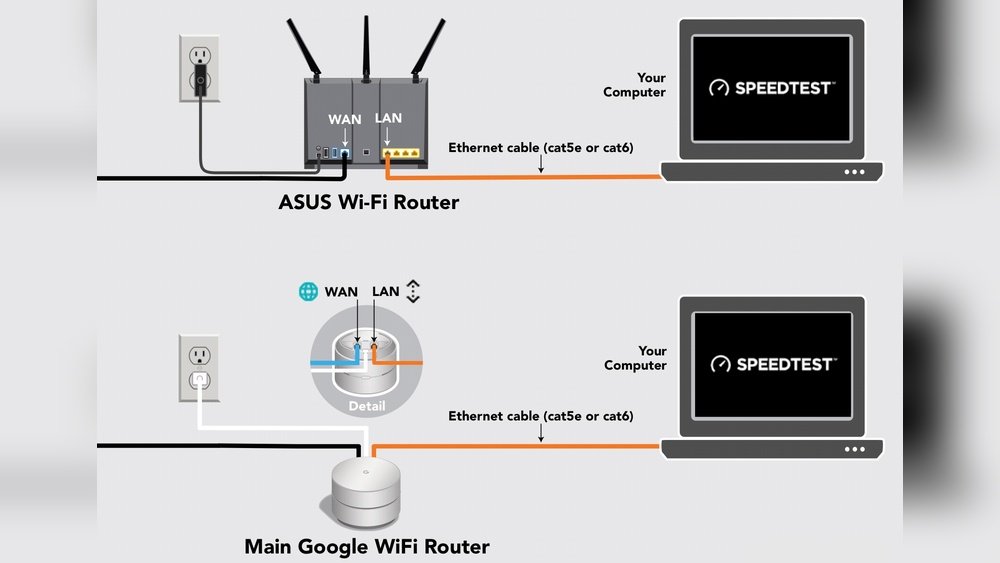
Testing Ethernet cable speed might sound technical, but it’s a lot easier than I first thought. When I set up my home office, I wanted my internet to be fast and reliable. I’d heard that a weak Ethernet cable could slow everything down.
So, I decided to learn how to check my cable speed myself. I’m going to share everything I learned, including mistakes I made, tools I used, and tips that saved me time. If you’re thinking about testing your Ethernet cable speed, trust me—this guide will make it simple.
Why Ethernet Cable Speed Matters
Let me start with why I cared about Ethernet speed. I work online, so slow internet means lost time and frustration. I tried Wi-Fi, but sometimes the signal dropped or lagged. That’s when I switched to Ethernet. I expected a big speed boost, but I didn’t get it right away.
After some research, I learned that not all Ethernet cables are the same. The cable type, length, and even small damages can slow things down. Testing your cable speed helps you find these problems. It also tells you if your setup is as fast as it should be.
What Affects Ethernet Cable Speed
I quickly found out that several things can affect how fast your Ethernet cable is:
- Cable Category: There are different types of Ethernet cables—Cat5, Cat5e, Cat6, Cat6a, Cat7, and Cat8. Higher numbers usually mean faster speeds.
- Cable Length: Longer cables can reduce speed, especially if they are over 100 meters (about 328 feet).
- Cable Quality: Cheap cables or damaged cables lose speed.
- Connectors: Bad or dirty connectors cause problems too.
- Network Devices: Old routers or switches might not handle high speeds, even with good cables.
- Interference: Placing cables near power lines or magnets can interfere with the signal.
I once used a very old Cat5 cable I found in a drawer. It worked, but when I tested the speed, it was much slower than my internet plan. After switching to a Cat6 cable, my speed almost doubled!

Tools You Need To Test Ethernet Cable Speed
I thought I’d need special tools, but you don’t need anything fancy to start. Here’s what I used:
- A computer or laptop with an Ethernet port
- An Ethernet cable (the one you want to test)
- A modern router or switch
- Speed testing software or websites (like Speedtest.net)
- Cable tester (optional, but useful for checking cable health)
- Network adapter drivers (make sure they’re up to date)
Some people use special hardware testers, but most of the time, your computer and a website are enough.
My Step-by-step Method To Test Ethernet Cable Speed
When I first tried this, I made a few mistakes. I’ll walk you through the steps I now use, so you can avoid my errors.
Step 1: Prepare Your Equipment
Make sure your computer’s Ethernet port works. If you have a laptop without one, you can buy a USB-to-Ethernet adapter. I once spent an hour troubleshooting, only to realize my laptop was set to use Wi-Fi instead of Ethernet!
Step 2: Connect The Ethernet Cable
Plug one end of the cable into your computer and the other into your router or switch. Check that the connection light turns on. No light? Try another port or cable.
Step 3: Disable Wi-fi
This is a step many people miss. If your Wi-Fi stays on, you might test the wireless speed by mistake. On Windows, I right-click the Wi-Fi icon and turn it off. On Mac, I just toggle Wi-Fi off.
Step 4: Use A Speed Test Website
Open a browser and go to a speed test site. My favorite is Speedtest.net. Click “Go” and wait for the results. You’ll see three numbers: download speed, upload speed, and ping.
- Download speed: How fast you get data from the internet.
- Upload speed: How fast you send data to the internet.
- Ping: How fast your connection responds.
If your cable is good and matches your internet plan, your results should be close to the speed you pay for.
Step 5: Compare Results With Wi-fi
I like to do the same test over Wi-Fi. Sometimes, the results are similar. Other times, Ethernet is much faster. This helps me see if my cable is really making a difference.
Step 6: Test Different Cables
If your speed isn’t great, try other cables. Once, I tested three cables—one Cat5, one Cat5e, and one Cat6. Here’s how my results looked:
| Cable Type | Download Speed (Mbps) | Upload Speed (Mbps) | Ping (ms) |
|---|---|---|---|
| Cat5 | 78 | 12 | 15 |
| Cat5e | 110 | 18 | 10 |
| Cat6 | 117 | 20 | 8 |
As you can see, the Cat6 cable gave me the best results.
Step 7: Use A Cable Tester (optional)
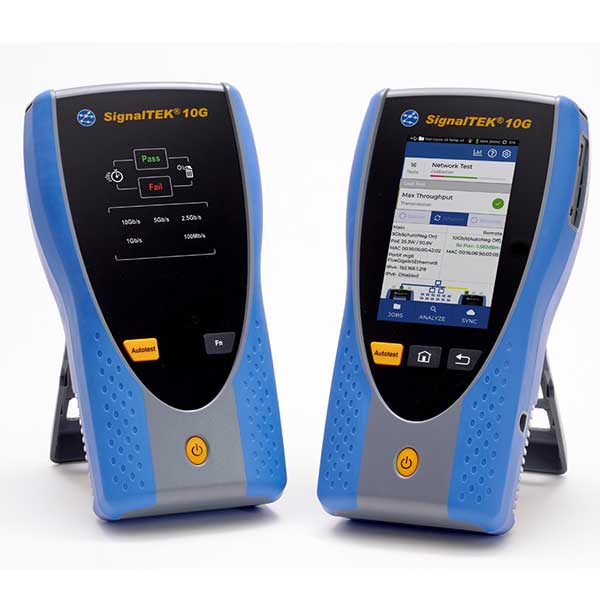
If you want to check for physical problems, a cable tester is great. I bought a cheap one online. You plug both ends of the cable into the tester. If the lights all turn green, your cable is good. If not, there’s probably a break or bad connector.
Once, my tester found a broken wire in a cable that looked perfect on the outside!
Understanding Ethernet Cable Categories
I learned that not all Ethernet cables are created equal. When I bought my first cable, I didn’t know the difference between Cat5 and Cat6. Here’s a quick comparison that helped me:
| Category | Max Speed | Max Frequency | Common Use |
|---|---|---|---|
| Cat5 | 100 Mbps | 100 MHz | Old networks |
| Cat5e | 1 Gbps | 100 MHz | Home/office |
| Cat6 | 10 Gbps (short) | 250 MHz | Modern networks |
| Cat6a | 10 Gbps | 500 MHz | Heavy use |
| Cat7 | 10 Gbps | 600 MHz | Data centers |
| Cat8 | 40 Gbps | 2000 MHz | Servers |
I now use Cat6 for my home. It’s fast and not too expensive. If you’re wiring a new space, I’d suggest starting with Cat6 or higher.
Common Mistakes I Made (so You Don’t Have To)
Testing Ethernet cable speed is simple, but I made some rookie errors. Here are the big ones:
- Testing during busy hours: Internet can be slower at night when everyone’s online. I got better results testing early in the day.
- Not updating drivers: My network adapter was using an old driver. After updating, my speed went up by about 10%.
- Ignoring the router: My first router only supported 100 Mbps, so even with a Cat6 cable, my speed was stuck at 100 Mbps. Upgrading the router fixed it.
- Using very long cables: I once used a 150-foot cable. My speed dropped a lot. Keeping cables under 100 meters (328 feet) helps.
- Forgetting about interference: Running cables near power cords or microwaves slowed things down for me.
These are things you might not notice at first. But fixing them made a big difference in my home network.
Advanced Tips For Accurate Testing
After I got the basics down, I wanted to make sure my results were really accurate. Here are a few extra steps I learned:
- Restart everything: Before testing, I restart my computer and router. This clears any old settings or problems.
- Test with large file transfers: I copy a big file between two computers on my network. If it’s slow, the cable might be the issue.
- Try both ends of the cable: Sometimes, only one connector is bad. Flip the cable and test again.
- Check for firmware updates: Updating the router’s firmware helped me get closer to the speeds I expected.
How To Know If You Need A New Cable
I used to think a cable worked until it stopped working completely. But that’s not true. Sometimes, an old cable still connects, but slows everything down. Here’s when you might need a new one:
- Your speed test results are much lower than your internet plan.
- The cable feels loose or the connectors wiggle.
- The cable looks worn, bent, or has visible cuts.
- You get frequent disconnects or errors.
If you see these signs, try a newer, higher-category cable. It made a world of difference for me.
Ethernet Cable Speed Vs. Wi-fi
People often ask me if Ethernet is really faster than Wi-Fi. In my experience, yes—most of the time. Here’s a quick comparison I did at home:
| Connection Type | Download Speed (Mbps) | Upload Speed (Mbps) | Ping (ms) |
|---|---|---|---|
| Ethernet (Cat6) | 117 | 20 | 8 |
| Wi-Fi (5 GHz) | 92 | 14 | 22 |
| Wi-Fi (2.4 GHz) | 41 | 7 | 37 |
Ethernet was almost always faster and more stable. For gaming or video calls, I always use a wired connection.
What To Do If Your Speeds Are Still Slow
If you tested everything and your speed is still slow, don’t panic. Here’s what I do:
- Call your internet provider: Sometimes, the problem is on their end.
- Test another device: Maybe your computer’s network adapter is old.
- Check for viruses or background downloads: These can slow your network.
- Replace the router: Older routers limit speed. New models support higher speeds.
I once spent hours troubleshooting my cable, but it turned out my provider had an outage. Always check with them if nothing else works.

Frequently Asked Questions
What Is A Good Speed For An Ethernet Cable?
A good Ethernet cable should match your internet plan. For most homes, Cat5e or Cat6 cables give speeds up to 1 Gbps (1000 Mbps). If you have a super-fast plan (over 1 Gbps), use Cat6a or higher.
Can A Damaged Ethernet Cable Still Work?
Yes, but you’ll likely see lower speeds or random disconnects. I had a cable with a bent connector—it still connected, but my speed dropped by half. If in doubt, try a new cable.
How Long Can An Ethernet Cable Be Without Losing Speed?
Try to keep cables under 100 meters (about 328 feet). Longer cables can lose speed and get more interference. For home use, 10 to 30 feet is more than enough.
Is Ethernet Always Faster Than Wi-fi?
Almost always, yes. Ethernet gives a direct, stable connection. Wi-Fi can be slowed down by walls, distance, and other devices. In my tests, Ethernet was always faster and had lower ping.
Do I Need Special Software To Test Ethernet Cable Speed?
No. Free websites like Speedtest. net work well. If you want to test your local network speed, tools like LAN Speed Test or transferring big files between computers can help.
Testing Ethernet cable speed changed how I use the internet at home. I hope sharing my experience helps you get the most out of your network. A few simple tests and the right cable can make a huge difference in your daily life.
If you have questions, keep exploring—there’s always something new to learn about networking!
As an Amazon Associate, We earn from qualifying purchases