
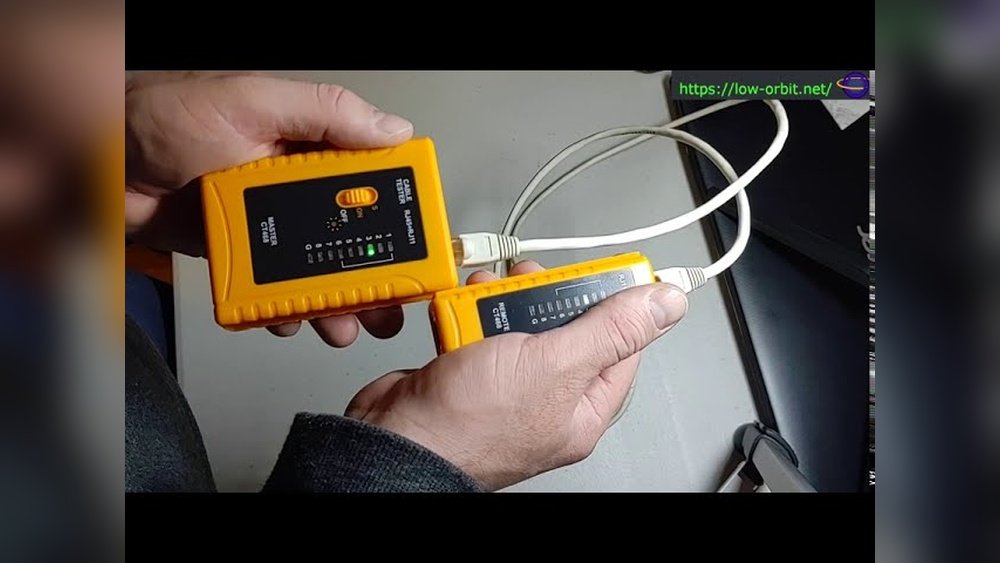
I remember the first time I used a network cable tester. I was nervous. I had to check a bunch of cables for a small office. I didn’t want to guess which wires were good or bad. I wanted to be sure. If you’ve ever wondered how to use a network cable tester, you’re not alone. I used to think it was only for tech experts. But after a few tries, I realized anyone can do it. Let me share my experience, step by step, so you can avoid the mistakes I made.
What Is A Network Cable Tester?
A network cable tester is a small device that checks if your cables are working right. It helps you find broken wires, wrong connections, or weak signals. I use mine almost every week, especially when I set up a new router or help someone fix slow internet.
There are different types of testers. Some are simple, and some are advanced. Most basic testers have two parts: a main unit and a remote unit. The cable plugs into both, and the tester checks if the signals go from one end to the other. If you want to know if your cable is good or bad, this is the tool you need.
Types Of Network Cable Testers
I quickly learned that not all testers are the same. Here’s a look at the ones I’ve used:
| Type | Best For | Price Range | Features |
|---|---|---|---|
| Basic Continuity Tester | Home Use | $10-$25 | Checks if wires connect end-to-end |
| Advanced Wire Mapper | Offices, IT Pros | $30-$70 | Shows which wire is broken or swapped |
| Certification Tester | Network Installers | $500+ | Gives full report on cable quality |
When I started, I used a basic tester. It was enough for home and small office jobs. If you only want to know if your cable works, a simple tester is fine.
Why You Need A Network Cable Tester
At first, I thought, “Why not just plug in the cable and see if it works? ” That’s what I did for years. But sometimes, the cable looked good but didn’t work right. I lost hours troubleshooting problems that a tester could have found in seconds.
Here’s why I always recommend using a tester:
- Saves time – No more guessing which cable is bad.
- Prevents mistakes – You know if wires are in the right order.
- Boosts confidence – I feel sure my work is good when the tester says so.
- Solves hidden problems – Some cables have breaks inside. You can’t see them, but the tester finds them.
Once, I had a cable that worked for slow internet but not for video calls. The tester showed one wire was loose. I fixed it, and the problem was gone.
What You Need To Get Started
You don’t need much to start testing network cables. Here’s what I keep in my kit:
- Network cable tester (main unit and remote)
- Ethernet cables (Cat5e, Cat6, or Cat7)
- 9V battery (if your tester needs one)
- RJ45 connectors (for making cables)
- Crimp tool (for fixing connectors)
- Small screwdriver (sometimes needed for battery compartments)
When I get a new tester, I always check if batteries are included. Most testers need a 9V battery, but some work with AA batteries. Make sure you have the right one.
How To Use A Network Cable Tester: Step-by-step
Let’s get to the steps. I’ll show you how I do it every time:
1. Prepare Your Cable
Before you test, make sure your Ethernet cable is not plugged into any device. Remove both ends from the computer, router, or wall.
2. Power On The Tester
Put the right battery inside the tester. Turn it on. Most testers have a simple switch or button. If you forget the battery (I’ve done this! ), nothing will happen.
3. Connect The Cable
Plug one end of the cable into the main unit. Plug the other end into the remote unit. The remote may be attached or separate. I like testers with a detachable remote because I can test long cables across rooms.
4. Start The Test
Press the “Test” button or switch to “On. ” The tester will check each wire inside the cable. Most Ethernet cables have 8 small wires. Good testers show 8 lights, one for each wire.
5. Read The Results
Here’s what I look for:
- All lights flash in order (1, 2, 3, … 8): The cable is good.
- Some lights do not flash: Those wires are broken.
- Lights flash out of order: The wires are crossed or swapped.
- All lights stay off: The cable is dead, or the battery is empty.
It took me a few tries to understand the lights. Read the tester’s manual if you are not sure.
6. Fix Or Replace The Cable
If the tester shows a problem, I check the connectors. Sometimes, the wires inside the plastic plug are not touching. I use a crimp tool to press them in place. If the cable is old or damaged, I make a new one.
7. Double-check Your Work
After fixing, I test the cable again. I never skip this step. Once, I thought I fixed a cable, but one wire was still loose. Double-testing saved me from more trouble.
Common Problems I’ve Found (and Fixed)
I’ve tested hundreds of cables. Here are the most common problems I see:
| Problem | What Tester Shows | How I Fixed It |
|---|---|---|
| Open Circuit | One or more lights do not turn on | Re-crimp connector or make new cable |
| Short Circuit | Two lights turn on at same time | Check for exposed wires touching each other |
| Crossed Wires | Lights blink out of order | Re-wire connector in correct order |
| Split Pair | Some wires work, some don’t | Replace connector or use a new cable |
A non-obvious insight I learned: Sometimes, cheap cables fail even if they are new. I once bought a pack of 10 cables online. Two were bad right out of the box. Always test new cables before you install them.
Mistakes To Avoid When Using A Cable Tester
I made a few mistakes when I first started. Let me save you some trouble.
- Testing live cables – Never test cables that are plugged into powered devices. You could damage your tester.
- Forgetting the battery – Many testers don’t come with batteries. Always check before you need it.
- Not reading the manual – Each tester is a little different. Spend five minutes with the manual.
- Ignoring the results – If the tester says the cable is bad, trust it. Don’t assume it’s just a loose light.
- Skipping re-tests – Always test again after fixing a cable.
One more thing: If your tester has a tone feature, don’t use it near sensitive equipment. The signal can sometimes cause interference.
How To Choose The Right Network Cable Tester
Over time, I’ve tried different testers. Here’s what I look for:
- Simple interface – I want clear lights and labels.
- Durable build – Some cheap testers break after a few drops.
- Detachable remote – Makes testing long cables much easier.
- Battery type – I prefer 9V because it lasts longer.
- Extra features – Some testers have sound alerts or can test phone cables too.
If you work in a big office, you might want an advanced tester that gives more details. For home or small jobs, a basic model is enough.

Real-life Example: Fixing An Office Network
Last year, I was called to fix slow internet in a small business. They had over 20 cables running under the floor. Instead of guessing, I tested each one. Three cables showed crossed wires. Two more had weak connections. After fixing them, the network speed doubled.
Everyone was happy, and I saved time by using my tester.
Comparing Basic Vs. Advanced Testers
It’s easy to get confused by all the options. Here’s a quick comparison based on my experience:
| Feature | Basic Tester | Advanced Tester |
|---|---|---|
| Price | $10-$25 | $30-$70 |
| Shows wire order | Yes | Yes |
| Finds split pairs | No | Yes |
| Tests cable length | No | Yes |
| Reports errors | Basic lights | Detailed info |
If you’re just starting, a basic tester is enough. You can always upgrade later if you need more features.
Tips For Accurate Testing
Here are a few lessons I learned the hard way:
- Clean connectors before testing. Dust can block signals.
- Test both ends of long cables. Sometimes, one side is good, but the other is not.
- Label your cables after you test them. I use small stickers or write on tape.
- Keep spare connectors in your kit. I’ve fixed many cables on the spot this way.
- Practice with old cables before testing new ones. It builds confidence.
A useful resource I found is the Wikipedia page on network cable testers. It explains the science behind how testers work if you want to go deeper.
How Often Should You Test Cables?
I test cables whenever I:
- Move equipment
- Set up a new network
- Troubleshoot slow internet
- Find random disconnects
Don’t wait for a problem to show up. Testing is fast and can save you a headache later.

Final Thoughts
Using a network cable tester changed how I work. I no longer guess if a cable is good. I know for sure. Testing is quick and simple once you get the hang of it. If you’re new, don’t worry. After a few tries, you’ll feel like a pro. Remember, trust the tester, double-check your work, and keep a spare battery handy. Your network will thank you!
Frequently Asked Questions
How Do I Know If My Ethernet Cable Is Bad?
If your internet drops often, is slow, or devices can’t connect, your cable might be bad. Use a network cable tester. If all lights don’t turn on in order, your cable has a problem.
Can I Use A Network Cable Tester For Phone Cables?
Yes, most testers can check phone cables if they use RJ11 connectors. Check your tester’s manual to be sure. I’ve used mine for both Ethernet and phone lines.
Do I Need To Turn Off My Devices Before Testing Cables?
Yes. Always unplug cables from computers, routers, or switches before testing. Testing live cables can damage your tester or your devices.
What’s The Difference Between Cat5e, Cat6, And Cat7 Cables?
The main differences are speed and shielding. Cat5e is common for homes. Cat6 is faster and better for offices. Cat7 is for high-speed networks and has more shielding. All can be tested with the same tester.
My Tester Shows All Lights, But Internet Is Still Slow. Why?
The tester checks wire connections, not internet speed. Slow internet can be caused by a bad router, too many users, or your internet provider. If the cable tests fine, check your other equipment.

As an Amazon Associate, We earn from qualifying purchases